Quick Start
Welcome to Xed-Editor! This guide will help you understand the basic layout of the app and how to get started with your first project.
The Sidebar (Drawer)
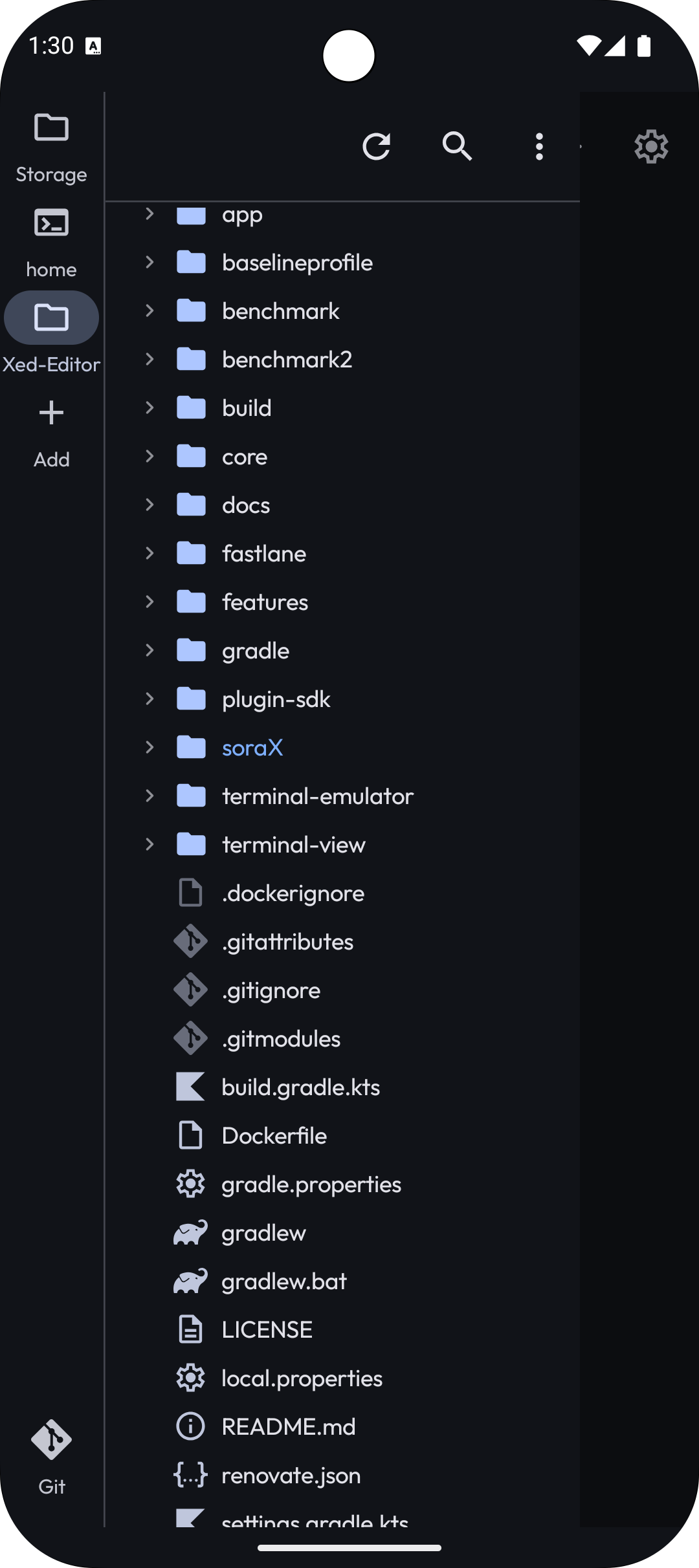
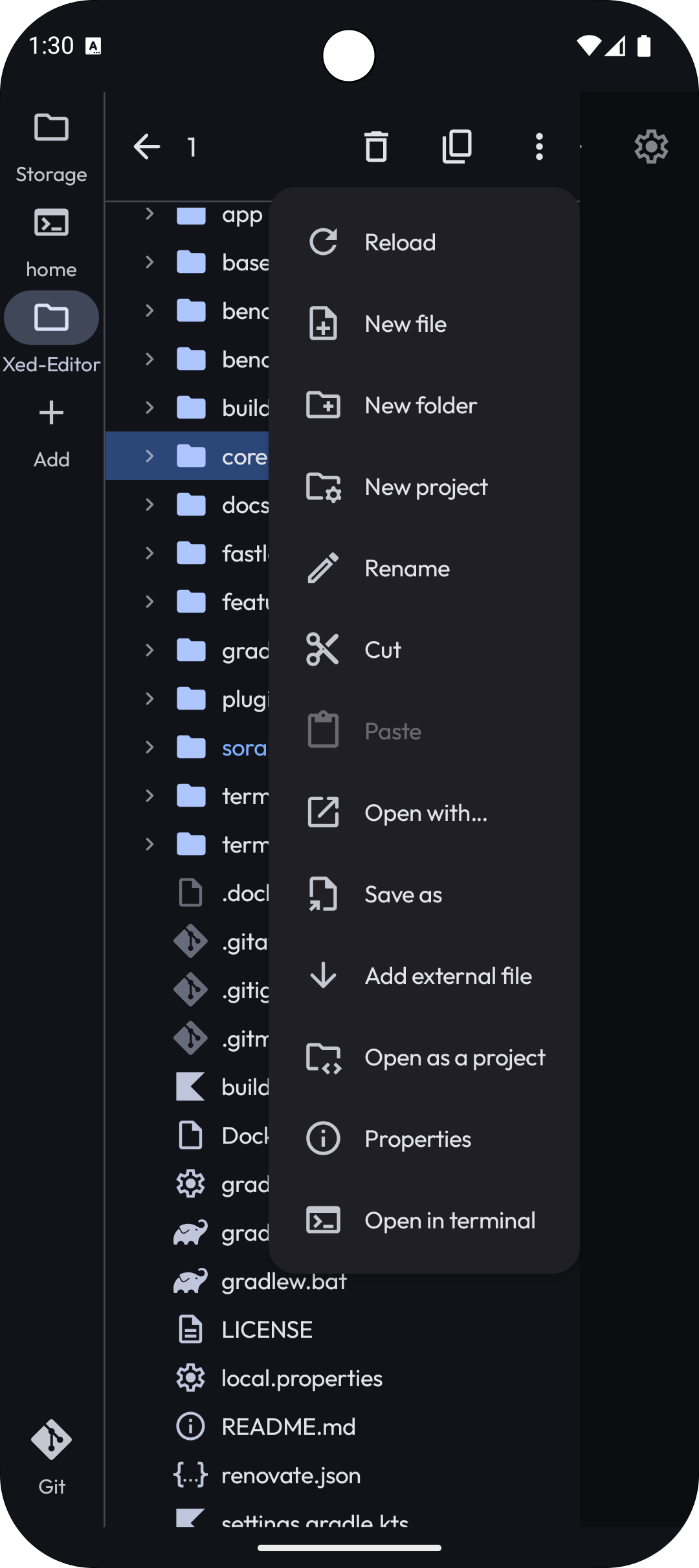
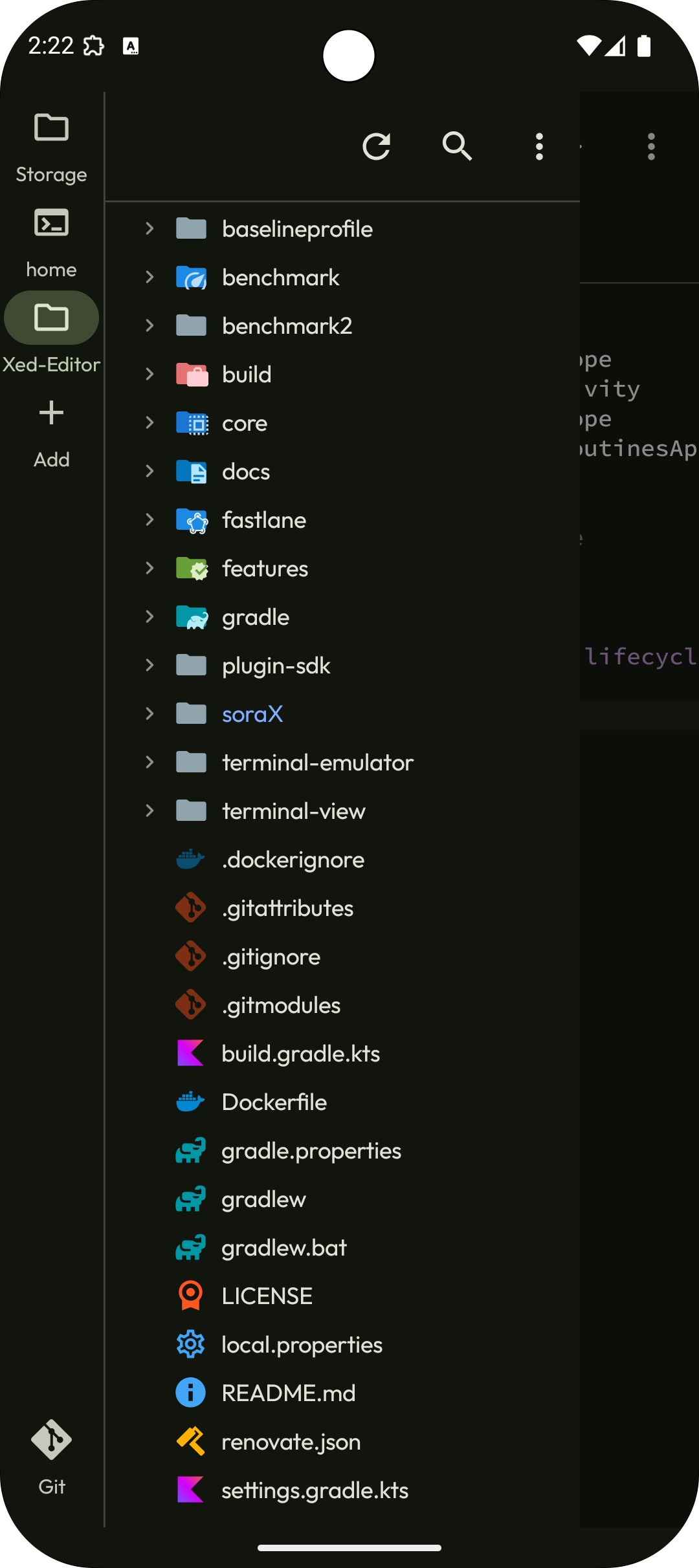
On the left side of the screen, you’ll find the Sidebar. This is where you manage your projects and tools.
- Projects: Each tab in the sidebar can represent a different project folder. You can add more projects or tools (like Git or Terminal) using the
+icon. - Reordering: You can long-press and drag the icons in the sidebar to reorder them to your liking.
- File Tree: Within a project tab, you can see all your files and folders.
- Tap a file to open it in the editor.
- Long-press a file or folder to see available actions like rename, delete, or create new files.
The Editor & Workspace
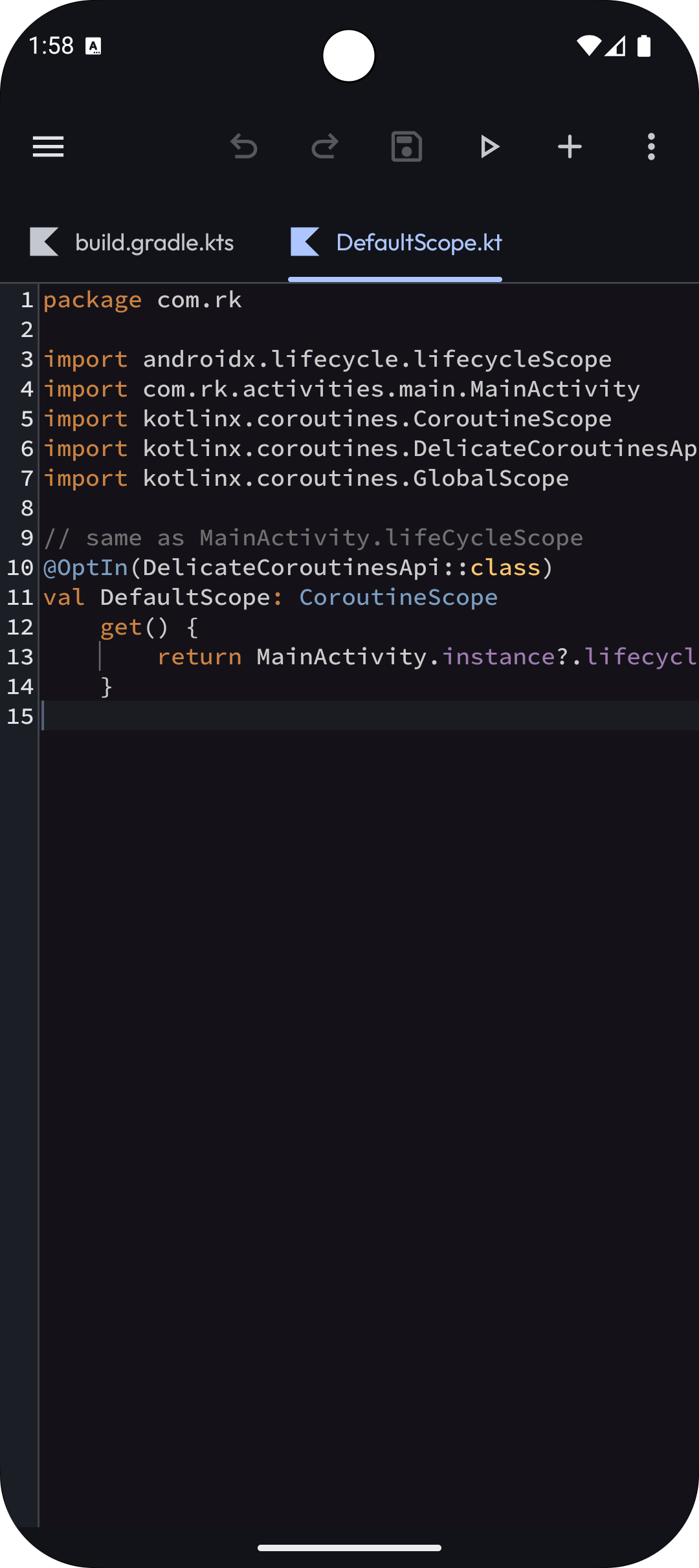
The main part of the screen is called the workspace/editor area.
- Tabs: Every file you open appears as a tab at the top. You can drag these tabs to reorder them or swipe them away to close them.
- Scoped Tabs (Workspaces): By default, Xed-Editor uses
Scoped Tabs. This means your open tabs are tied to the project currently selected in the sidebar. When you switch projects, Xed-Editor automatically swaps the tabs to show only those belonging to that project, giving each one its own dedicated workspace.
Top Bar & Commands
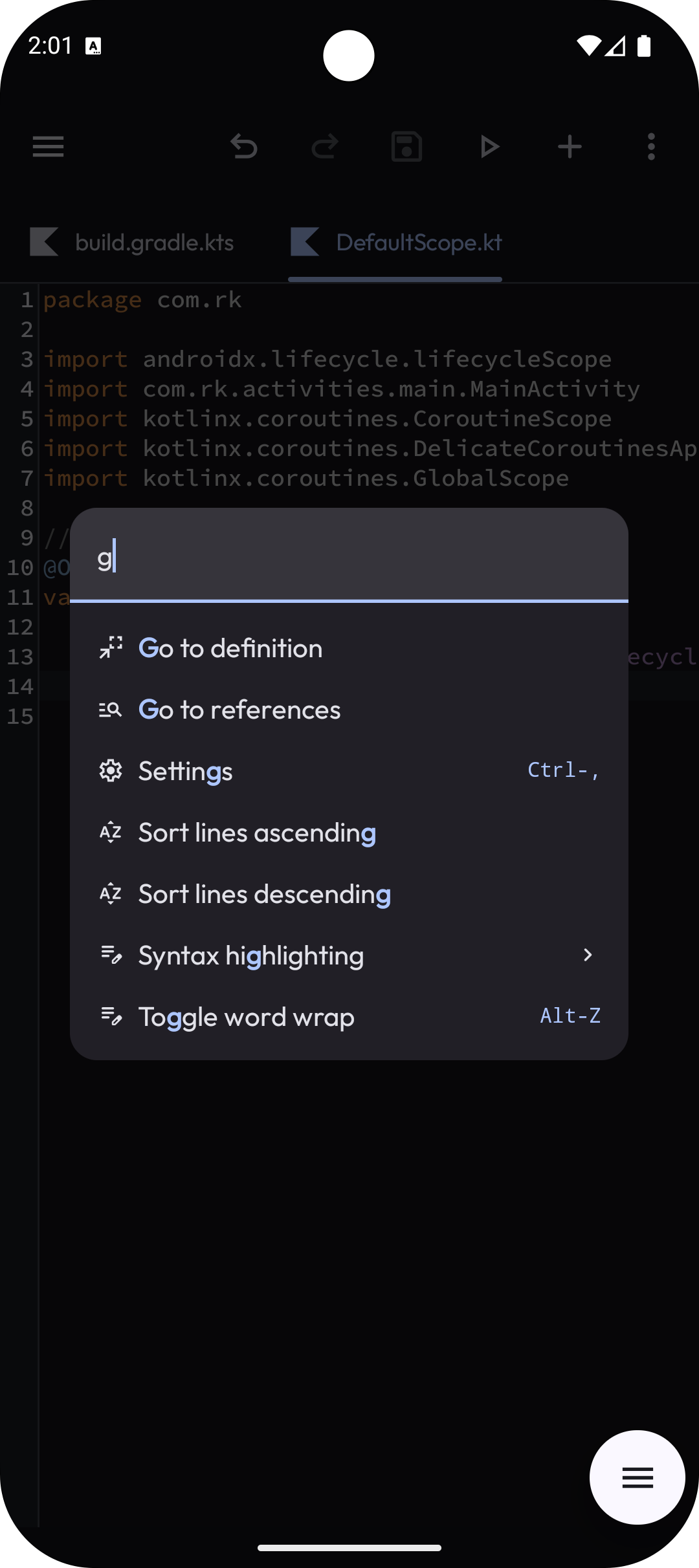
The top bar provides quick access to actions and navigation.
- Toolbar Actions: On the right side of the top bar, you’ll see icons for common commands. You can choose which commands appear here in
Settings > Editor > Toolbar Actions. - Command Palette: Need to find a command quickly? Swipe down from the top toolbar to open the Command Palette. It allows you to search and execute any action in the editor.
Extra Keys
When you have a file open, a special panel appears at the bottom of the screen.
- Extra Keys: This provides quick access to symbols (like
{,},[) and navigation keys. - Custom Commands: Just like the top toolbar, you can pin your favorite commands to this bottom bar through
Settings > Editor > Extra Keys.
Customization & Store
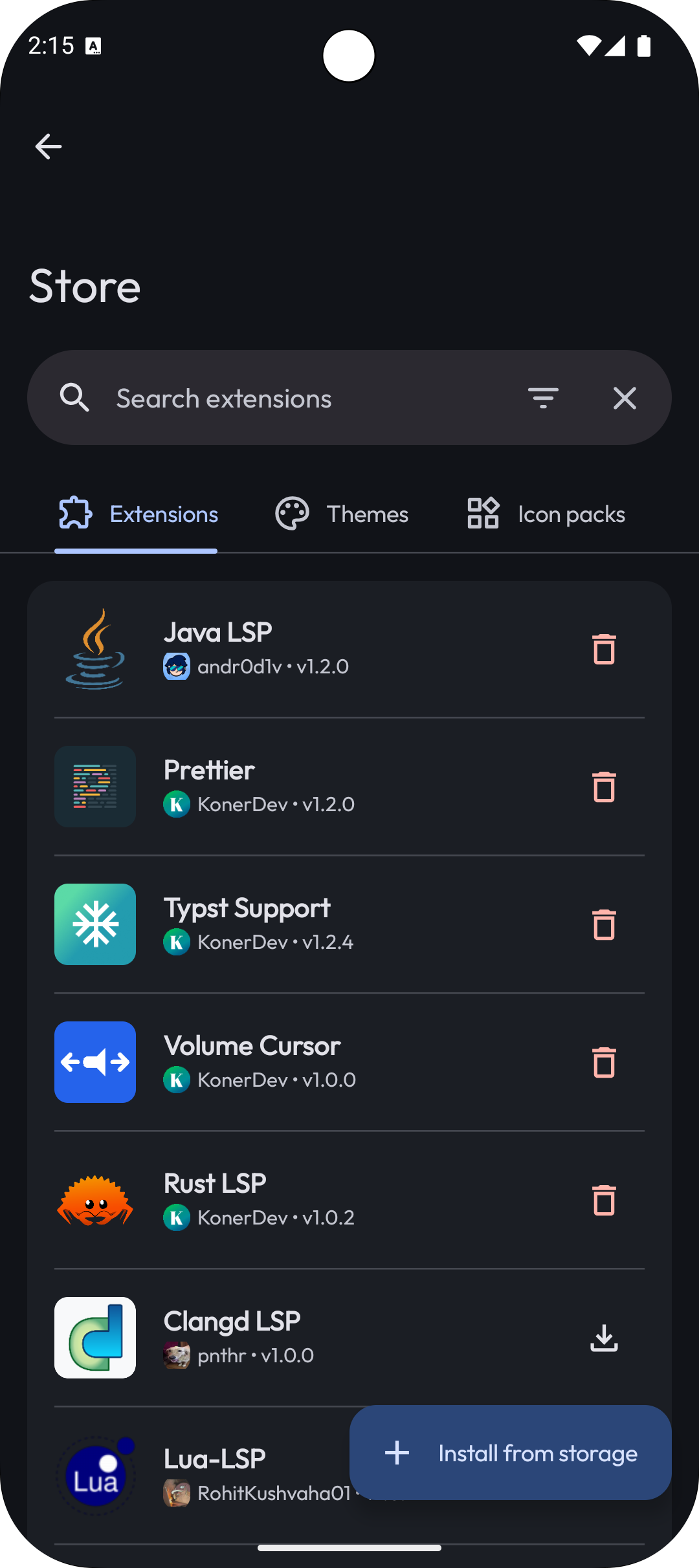
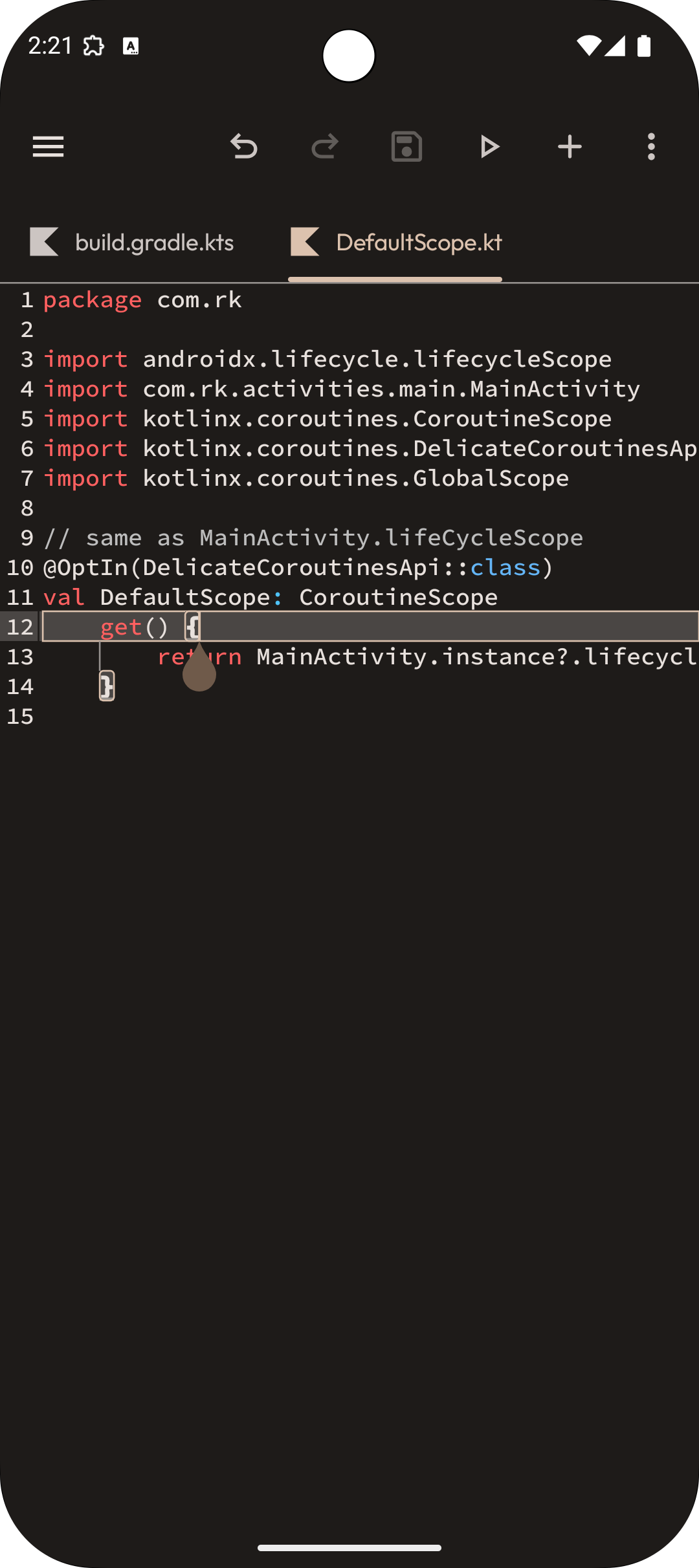
Xed-Editor is designed to be personalized. Visit the built-in Store to download:
- Themes: Change the entire look and feel of the app.
- Icon Packs: Customize the file icons in the sidebar.
- Extensions: Add powerful new features, language support, and more.
Language Support (LSP)
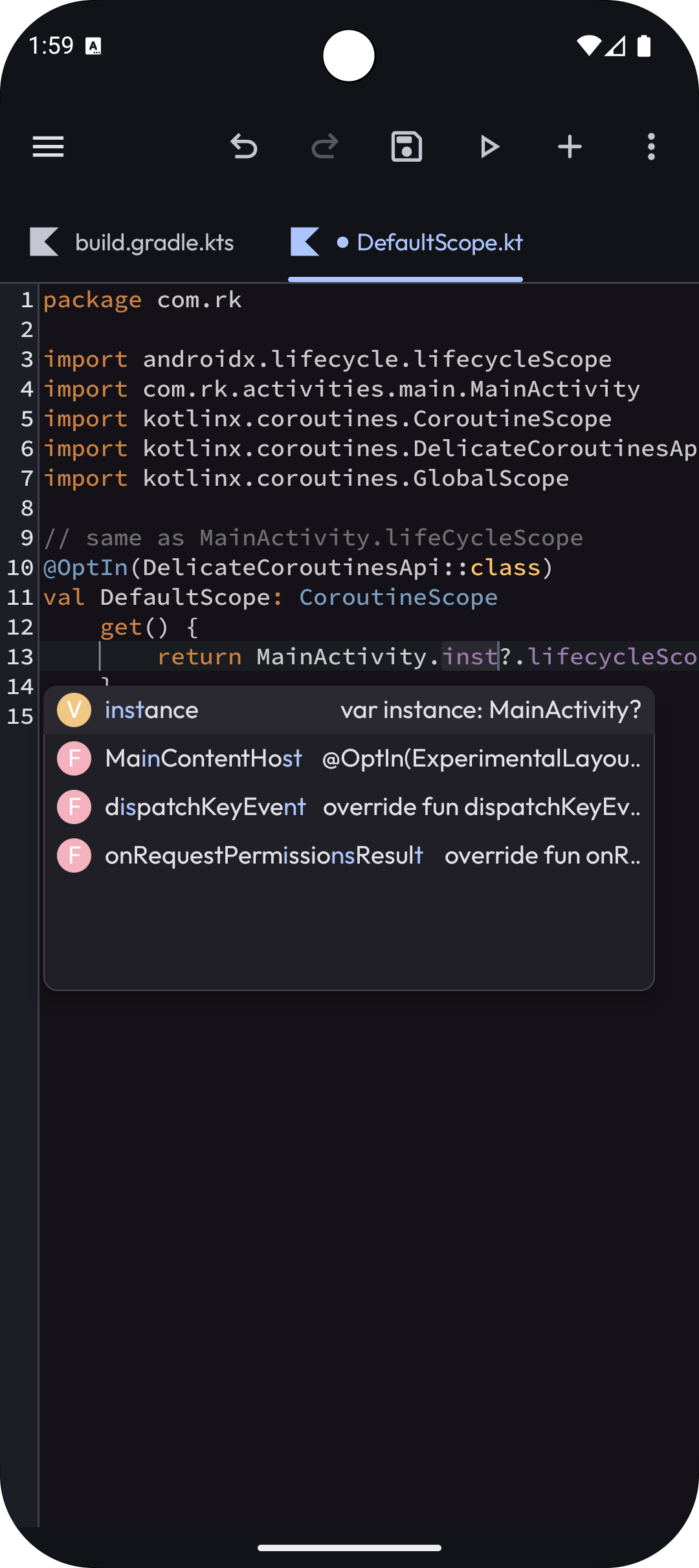
For a better coding experience, Xed-Editor supports the Language Server Protocol (LSP). This provides smart features like syntax highlighting, autocompletion, and error detection. You can learn more about setting them up in our LSP Guide.
Running Your Code
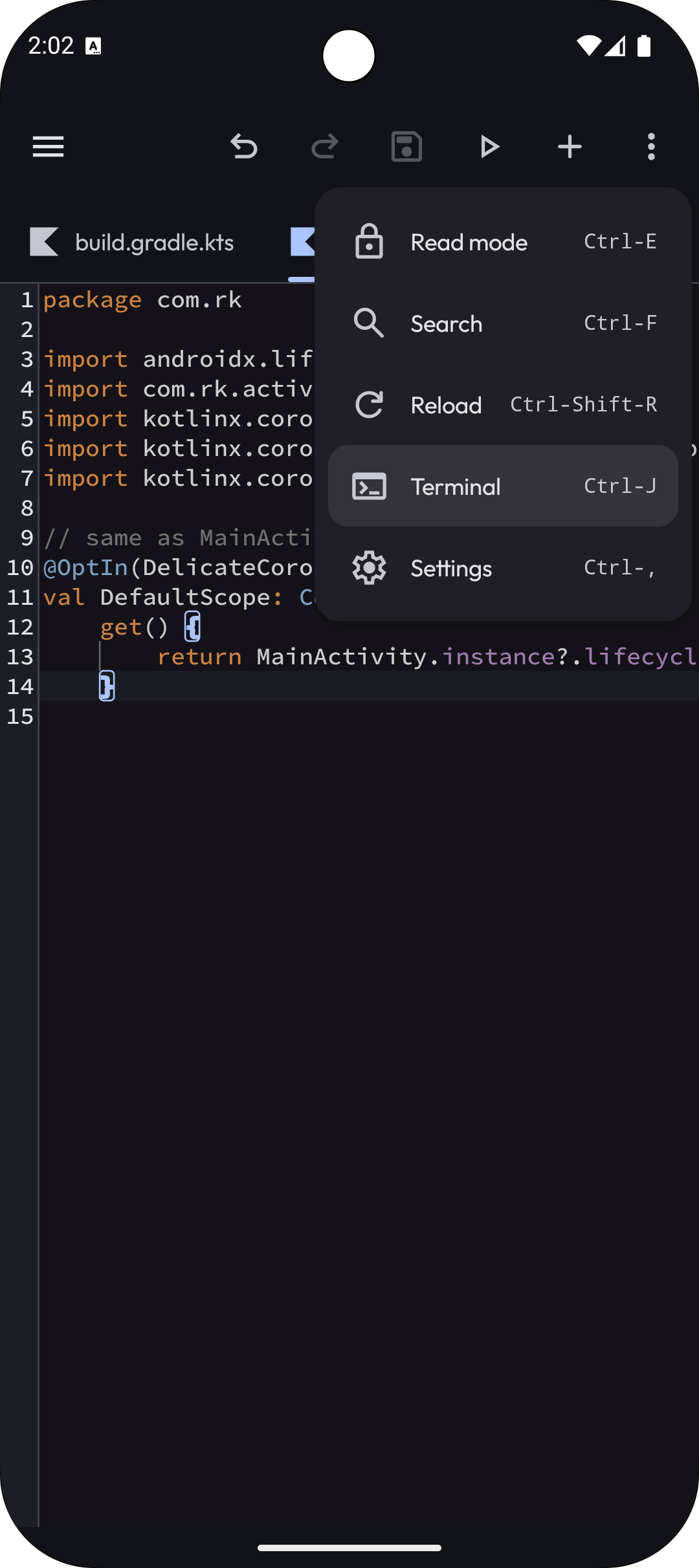
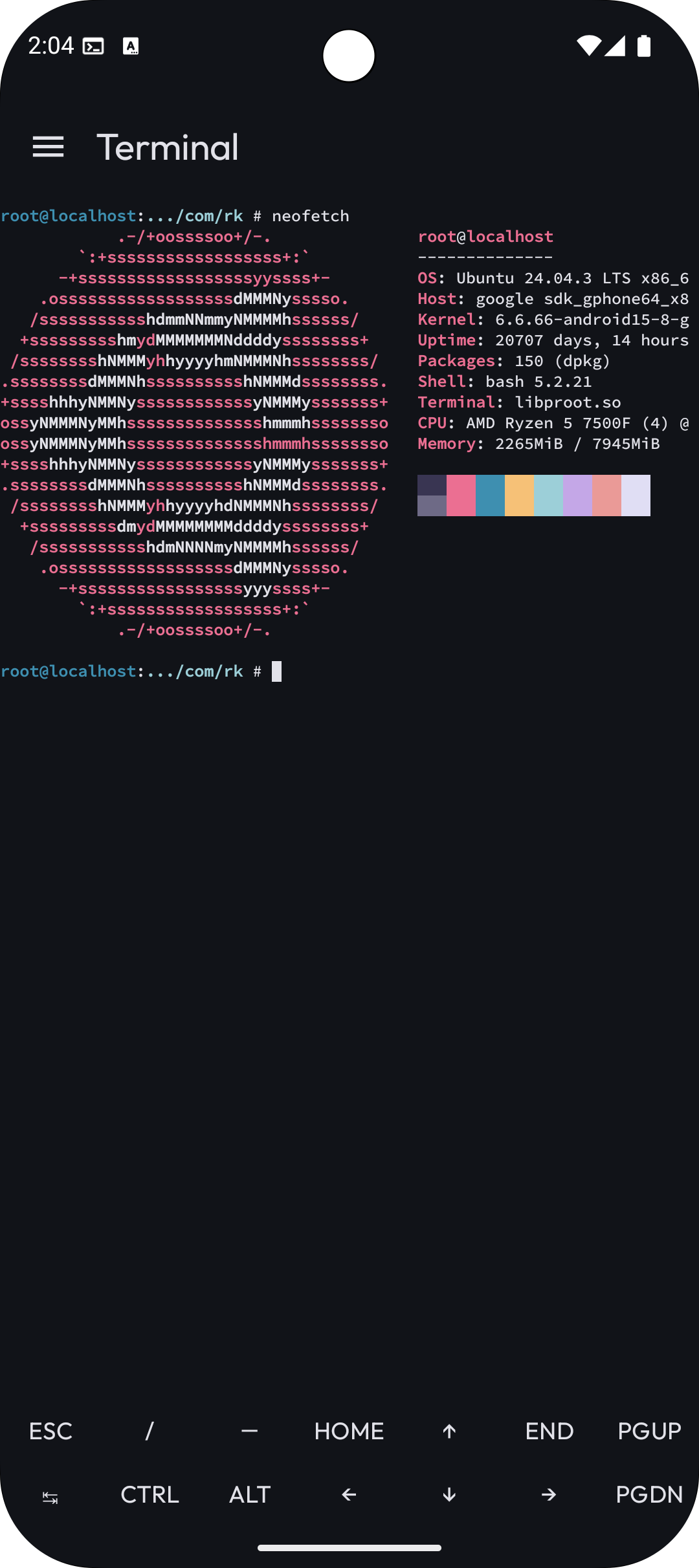
Xed-Editor isn't just for writing text; you can also execute your projects.