Terminal
Xed-Editor ships with a fully-featured terminal that runs Ubuntu 24.04 Linux Rootfs distribution inside a sandbox. It is used for running commands, executing scripts, hosting language servers and running code through the runners.
Because the terminal runs a complete Ubuntu root filesystem, everything works like on a normal Linux machine: apt, pip, npm, compilers, Git, and so on.
TIP
New to the command line? Ubuntu provides a beginner-friendly guide covering essential commands, files and directories, paths, and other terminal basics.
WARNING
The terminal provides direct access to your filesystem and the ability to execute arbitrary commands. Improper use of commands can permanently delete files or compromise the device. You are responsible for understanding the commands you execute and their potential consequences.
How It Works
The terminal is not a toy shell that just emulates a few commands. It is a real Linux rootfs container running on your Android device. To understand how that is possible, it helps to look at the layered architecture:
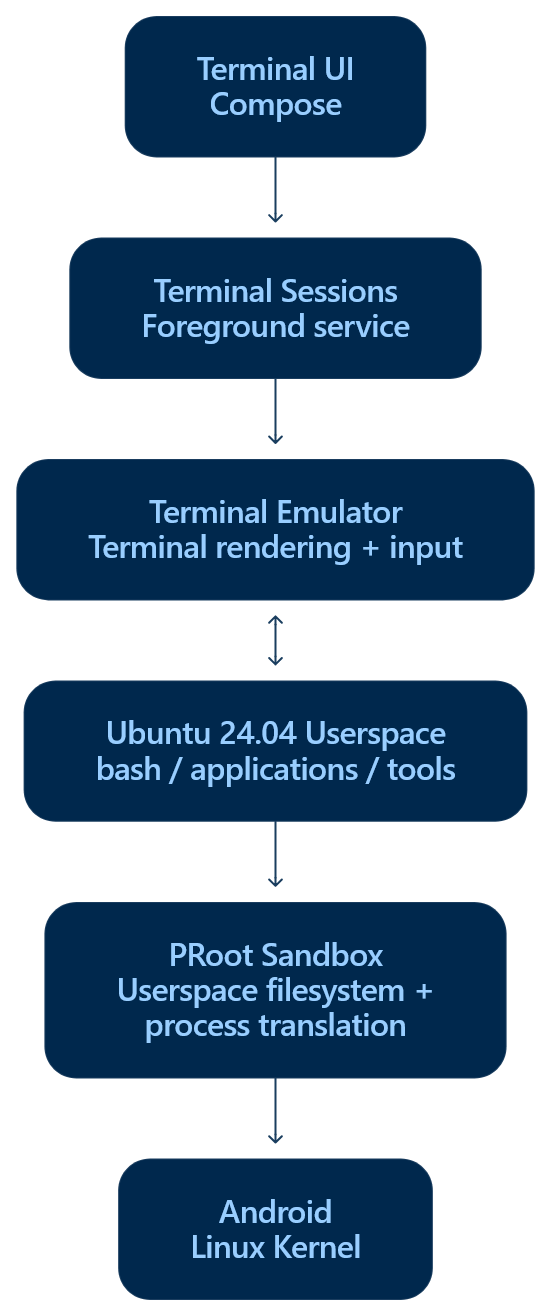
- Terminal UI renders the terminal screen, captures input, and provides terminal controls.
- Sessions are managed by a foreground
SessionServiceso they keep running even when the terminal screen is closed. - The terminal emulator (upstream Termux code) handles terminal input/output and maintains the screen state, including text, colors, cursor position, and scrollback.
- Ubuntu userspace provides
bashand the Linux applications and tools running inside the terminal. - PRoot provides the userspace translation needed to run the Ubuntu environment on Android without root access.
- The Android kernel actually executes everything. PRoot transparently rewrites filesystem and process operations so Ubuntu binaries believe they are running on a normal Linux machine.
First Launch & Setup
The first time you open the terminal, Xed-Editor downloads and installs the Ubuntu root filesystem. This only happens once.
Download
Depending on your device's CPU architecture, one of these rootfs archives is downloaded:
| Architecture | Download |
|---|---|
arm64-v8a (64-bit) | ubuntu-base-24.04.3-base-arm64.tar.gz |
armeabi-v7a (32-bit) | ubuntu-base-24.04.3-base-armhf.tar.gz |
x86_64 | ubuntu-base-24.04.3-base-amd64.tar.gz |
The file is streamed to cache/tempFiles/sandbox.tar.gz. A progress screen with a live percentage is shown while downloading. If the download is interrupted, it simply restarts from scratch the next time.
Extraction
When the download completes, the terminal starts in extraction mode. Instead of an interactive shell, a special setup.sh script runs inside PRoot.
Read more about what the script does.
The "Installed" Marker
Installation is tracked by a marker file:
<private>/local/.terminal_setup_ok_DO_NOT_REMOVEThe terminal counts as installed only when this marker exists and the rootfs directory is non-empty. Deleting it will trigger a full reinstallation on next launch.
The Ubuntu Sandbox
The Ubuntu root filesystem lives inside the app's private storage:
| Path | Purpose |
|---|---|
<private>/local/sandbox | The Ubuntu root filesystem (/) |
<private>/local/home | The user's home directory ($HOME) |
<private>/local/bin | Helper scripts and tools |
<private>/local/lib | Native libraries |
<private>/local/stat | Generated CPU stats (see below) |
<private>/local/vmstat | Generated memory stats (see below) |
What is PRoot?
PRoot is a user-space implementation of chroot, mount --bind and sudo. It uses the Linux ptrace mechanism to intercept the system calls made by the traced process and transparently:
- Translates paths so
/usr,/etc, ... resolve inside<private>/local/sandboxinstead of the real Android filesystem. - Binds host directories into the guest namespace, e.g.
/sdcardappears inside the Ubuntu filesystem. - Fakes root so
apt,dpkg, useradd, etc. work even though the app runs as a normal (unprivileged) Android app. - Emulates some Linux features that Android lacks (e.g. System V IPC, seccomp quirks).
No root access is needed. PRoot works entirely in user space by tracing syscalls.
Seccomp
Some devices (especially recent Snapdragon/MediaTek chips) return Function not implemented errors when running certain syscalls inside PRoot. Xed-Editor lets you choose how PRoot handles seccomp (the kernel's system call filter) in Settings → Terminal → SECCOMP:
| Value | Effect |
|---|---|
Unspecified | Let PRoot decide (default) |
Yes | Use PRoot's seccomp acceleration (SECCOMP=1) |
No | Disable seccomp (PROOT_NO_SECCOMP=1), use when syscalls fail |
This setting is applied to every session and to every ubuntuProcess invocation.
Shell Configuration
The terminal uses Bash as its default shell. You can customize your shell environment by editing the ~/.bashrc file inside the Ubuntu environment.
For example:
nano ~/.bashrcChanges to ~/.bashrc are applied when you start a new terminal session. To apply changes to the current session immediately, run:
source ~/.bashrcYou can use ~/.bashrc to add aliases, environment variables, functions, or other Bash configuration.
Read more about how the shell is configured.
Where the Shell Starts (Working Directory)
The starting directory is determined in order:
- If a command was launched with an explicit working directory (e.g. the universal runner passes the file's parent folder), that directory is used.
- If the terminal was opened from a file/folder ("Open in terminal"), that path is used.
- If Settings → Terminal → Use project as working directory is enabled and an editor tab is open, the current file's parent directory is used.
- Otherwise it falls back to
/home(sandboxed) or the sandbox home directory.
The working directory is exported as WKDIR and also used by the init script.
Sessions
A session is a single running shell process connected to the terminal screen. You can have multiple sessions open at once, each with its own shell, working directory and scrollback. Each shell
Session Service
All sessions are owned by a foreground SessionService (an Android foreground service). This is what lets the terminal keep running, and keep running commands, even when you leave the screen or switch to another app. The service shows a persistent notification showing how many sessions are running, with two actions:
- Exit kills all sessions and stops the service.
- Wake lock (acquire/release) toggles a partial wake lock so long-running commands aren't paused when the screen turns off.
The session service also hosts the xed socket server and the /proc virtualizer.
Managing Sessions
Open the navigation drawer in the terminal (tap the menu icon) to see all sessions. From there you can:
- Add a session creates a new one named
main #1,main #2, etc. - Switch sessions tap a session to switch to it.
- Rename sessions tap the edit icon next to a session.
- Delete sessions tap the delete icon; if it was the current session, the terminal switches to a neighboring session first. Deleting the last session closes the terminal and stops the service.
- Exit when a session's process has finished, pressing Enter in that session terminates it and returns to the previous session (or finishes the activity).
Failsafe Mode
In debug builds, Settings → Terminal → Failsafe mode starts the terminal without the Ubuntu sandbox. It runs /system/bin/sh directly with a minimal set of bindings and environment. This is useful for recovering a broken installation (e.g. when the rootfs fails to boot).
The xed Command
Inside the Ubuntu container, a command called xed is available. It allows you to open files in the editor directly from the terminal:
xed path/to/file.py path/to/other.txtIf you pass a folder instead, it will open a new project:
xed path/to/folderRead more about how it works.
/proc Virtualization
Android restricts real CPU/memory statistics, so the terminal would see empty /proc/stat and /proc/vmstat files, breaking tools like top, htop, neofetch, and load reporting.
Xed-Editor solves this with a background StatUpdater (started with the session service) that every second:
- Reads the app's real CPU usage from
/proc/<pid>/statof its own processes and computes per-core deltas. - Adds a small simulated background load so the numbers look alive.
- Distributes ticks across the actual number of cores.
- Writes a well-formed
/proc/statfile (withcpu,cpu0..N,intr,ctxt,btime, ...). - Reads the real memory info via
ActivityManager.MemoryInfoand writes a realistic/proc/vmstatfile (free pages, anon/file pages, swap, page faults, ...).
These files live at <private>/local/stat and <private>/local/vmstat and are bound into the container at /proc/stat and /proc/vmstat (see default bindings).
Virtual Keys / Extra Keys
The extra keys row follows the Termux extra keys format, a JSON array of rows, where each row is a list of keys. You can edit it in Settings → Terminal → Change extra keys.
Each key can be:
- A simple string:
"ESC","TAB","HOME","UP","PGDN", ... - An object with a
keyand optionalpopupfor swipe-up alternatives:{"key": "-", "popup": "|"}. - A
macrofor key combinations:{"macro": "CTRL C", "display": "copy"}.
Aliases are supported (e.g. ESCAPE → ESC, RETURN → ENTER, PAGE_UP → PGUP). The default layout is:
[
  ["ESC", {"key": "/", "popup": "\\"}, {"key": "-", "popup": "|"}, "HOME", "UP", "END", "PGUP"],
  ["TAB", "CTRL", "ALT", "LEFT", "DOWN", "RIGHT", "PGDN"]
]
CTRL / ALT / SHIFT / FN are toggles, tap them once to apply the modifier to the next key.
Colors & Fonts
The terminal respects the active theme:
- Colors come from the theme's
terminalColorspalette plus the theme'sonSurface(foreground) andsurface(background). - Font size can be adjusted with Settings → Terminal → Text size (10–20) or by pinch-zooming directly on the screen (11–45 range).
- The font can be changed in Settings → Terminal → Manage terminal fonts.
WARNING
If the sandbox contains a font at etc/font.ttf, it overrides the custom font setting. Delete that file inside the terminal to use the configured font instead.
Cursor Style
Choose the cursor shape in Settings → Terminal → Cursor style: block, bar or underline. The cursor also blinks while a session is running.
Settings Reference
All terminal settings live under Settings → Terminal:
| Setting | Description |
|---|---|
| Text size | Font size in the terminal (10–20) |
| Manage terminal fonts | Choose a custom font file |
| Cursor style | Block, bar or underline cursor |
| SECCOMP | Seccomp handling for PRoot (see above) |
| Terminal health | Runs diagnostics (see below) |
| Change extra keys | Edit the virtual keys row (Termux format) |
| Clipboard keybindings | Enable Ctrl+C/Ctrl+V style clipboard shortcuts |
| Scrollback buffer size | Lines of history kept in memory (100–50,000; default 5,000), requires a restart |
| Terminate all sessions | Kill all sessions when the app is closed |
| Use project as working directory | Start the shell in the current project/editor folder |
| Expose home directory | Make the terminal home accessible to external apps via the system file picker (SAF) |
| Failsafe mode (debug only) | Run /system/bin/sh directly without the Ubuntu sandbox |
| Backup | Create a terminal-backup.tar.gz of the sandbox |
| Restore | Restore the sandbox from a backup archive |
| Uninstall terminal | Permanently remove the Ubuntu rootfs, helpers and marker file |
Backup & Restore
Backups are full tar.gz archives of the sandbox rootfs, excluding volatile/system directories (dev, sys, proc, system, apex, vendor, data, home, root, caches, ...).
- Backup lets you pick a location via the system file picker and writes the archive there.
- Restore reads an archive, wipes the sandbox and extracts it, then re-creates the installed marker.
Uninstalling
"Uninstall terminal" deletes <private>/local/bin, <private>/local/lib, the sandbox rootfs and the installed marker. The next time the terminal is opened, a fresh Ubuntu is downloaded and installed.